
Whether you use a live webinar recording or upload a new video, On-Demand Webinars let you extend the life of your content and reach new audiences. With BigMarker you can easily create, design and manage these sessions with just a few simple steps.
How to Create an On-Demand Webinar
Creating an on-demand webinar from scratch
The first option for creating an on-demand webinar is to upload your own content. From the home page, select Create a Webinar.
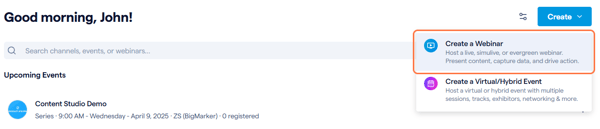
Select the On Demand Webinar type and fill out the webinar details.
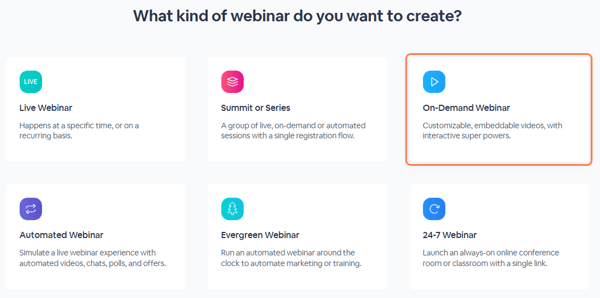
Note: The maximum file size for a video upload is 4GB
After you create the webinar, you'll proceed to the session admin where you'll have access to all of the settings for the content, landing page, emails and analytics. On the dashboard you can scroll down to see a preview of the video player.

Creating an on-demand webinar from a live webinar
Once your live session on BigMarker ends, you can convert it into an On-Demand Webinar. This lets you notify existing registrants when the recording is ready to watch and make the content available to new registrants.
When you create a live session, you'll want to make sure it's being recorded. You can either manually record this, or set the webinar to auto-record to keep it simple. Once the webinar has ended, the dashboard for the live webinar will transform into the unpublished on-demand state that we saw above.
If your webinar was not recorded, you can still convert it into an on-demand webinar. On the dashboard click Convert to On-demand. From here you can either select a video that was pre-loaded into the webinar, or choose to upload a new file.


Publishing the on-demand webinar
By default, the webinar will start as Unpublished. In this state, no guest or registered users will be able to see the video. This way you can ensure that everything is set correctly before making your content viewable.
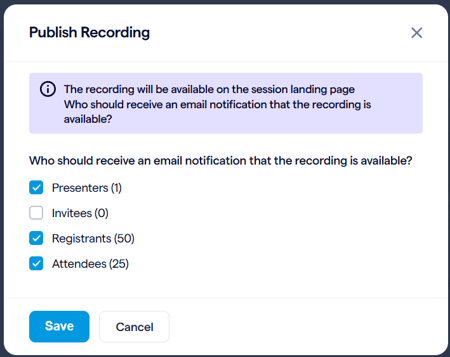
Once you're ready to publish, simply click on the button in the dashboard to publish. Once you do, you'll get a prompt where you can decide who should get the recording published email.

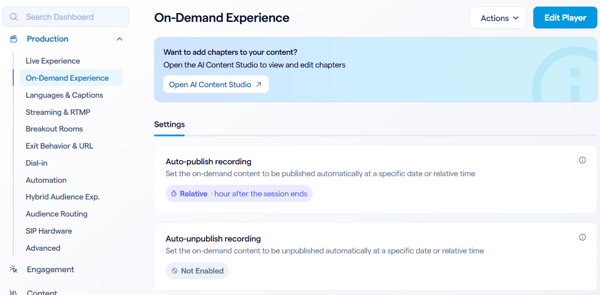
Before your webinar is recorded, you can also set automatic publishing and unpublishing times. Look for these settings in Production > On-Demand Experience:
What settings are available for my on-demand webinar?
Customizing the player
The BigMarker webinar player has many options, features and design elements that you can configure to exactly what you need. For more detailed information on how to do that, click here.
Captions
Unlike live webinars, you can upload your own transcript files for closed captions inside of the video. Click here for more information on how to set that up.
Embed your webinar
Oftentimes you might want the BigMarker video player to be embedded on another page, whether it's on another BigMarker page or elsewhere on the internet. Get the embed code quickly by clicking on Copy Embed Code within the Video Actions menu in the dashboard.
