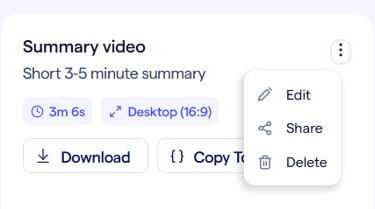
After using the Content Studio on your On-demand session, you'll have the ability to share links to video clips and chapters that you've created. These allow you to either give people access to your content without having to register for the session, or direct people to the landing page and have the video start at a specific time.
The Content Studio is only available to Enterprise Accounts. For more information on how to get access to these features, contact sales@bigmarker.com or your BigMarker point of contact.
Sharing Chapters
After creating your chapters, you'll see a 3-dot menu next to each one. Click on this to get a few options:
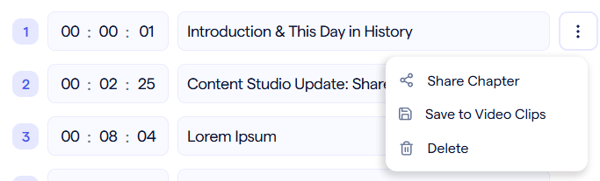
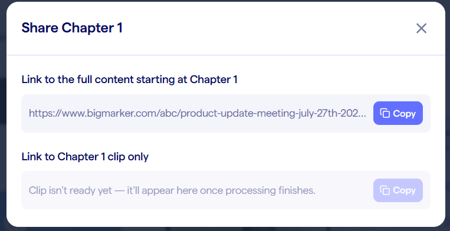
Share Chapter will give you a new pop-up with two options for links to copy. The first option is going to be a link to the landing page of the session with a timestamp. This timestamp will be the start of the chapter you have chosen. If you send this link to a user who hasn't registered, the video will still begin at the timestamp after they do so.
The timestamp uses a parameter that can be used for any on-demand landing page, even if you didn't use the content studio. Any on-demand session can use this timestamp parameter:
{Session URL}?seconds=x
Replace the X with a number of seconds and your video will start at that point.
The other option is to share a link to just the clip. Do share this, you'll first need to create a clip from this chapter by clicking on Save to Video Clips in the previous menu. Once processed, you'll be able to share a link that only contains this clip, where anyone can watch and download.
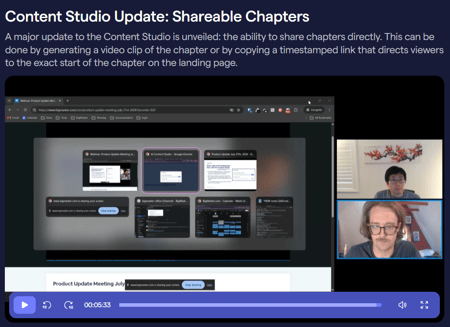
Note that this link is open to all. Users will not need to register in order to see this clip.
Sharing Video Clips
When you create video clips, you have the option of sharing them in the same way. In any video clip click on the 3-dot menu then click on Share. You'll be able to copy a link that brings users to the same style of page that we see for the chapter clips.