
Note: This feature is available to Enterprise and Events Package plan holders. If interested, please contact our Events Experts at sales@bigmarker.com
Using the classic admin? Click here to learn where you can find the Sponsor Banner settings.
Sponsor Banners are a great way to redirect your attendees to your company’s current offers or external website. You can set an immediate popup offer for attendees to view when entering your event, show off all your current advertisements, or highlight one throughout your event. You can even set up your sponsor banner to link to a webinar survey page. Available in both Webcast and Interactive modes, this feature aids in marketing campaigns, raising brand awareness and helping push attendees towards your offers.
How to Add Sponsor Banners to Your Event
To find the Sponsor Banners in the new Session Admin, go to Marketing > Sponsor Banners

In here you'll see two categories of banner: Banner Ad or Pop-up Banner
For Banner Ad:
- Click the plus button in the category
- Upload an image and set a URL that users go to when clicking the ad, which can be a custom URL or your survey
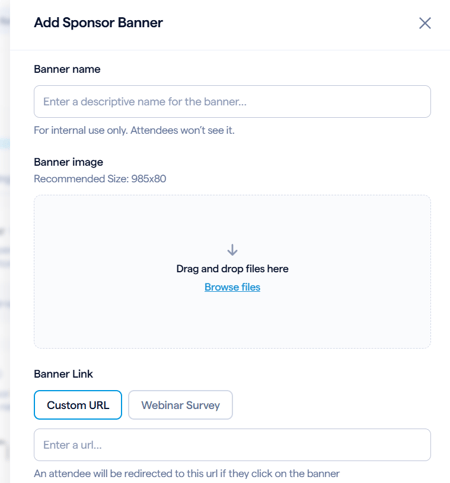
Click the plus button in the Pop-up Banner to set that style of banner up. This banner functions differently than the Sponsor Banner. A window will open inside of the webinar room immediately as the attendee loads the page. They must click a button to close it and view the webinar content. This button will always just function as a way to enter the live session, it will not take them to a separate URL.
Clicking this button will also function as a way to customize the "Click for Audio" button.
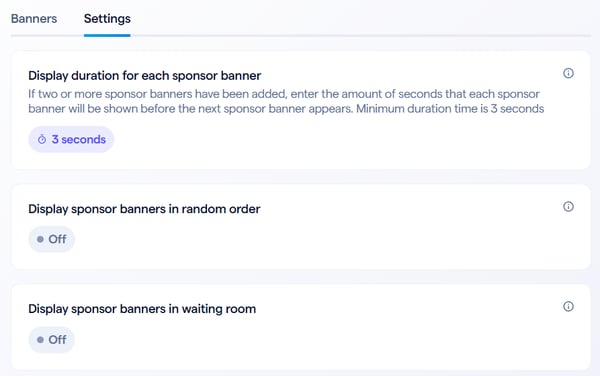
In the settings, you can decide how quickly the live room will swap out the different banners you have added, if they should appear in a random order, and if they should be displayed in the waiting room.
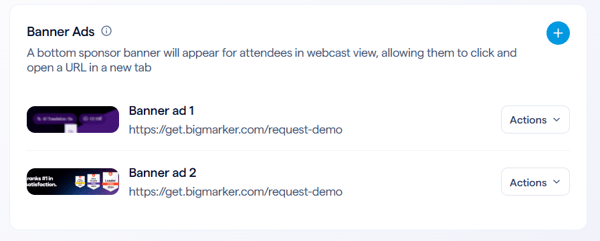
Your sponsor banners will display in each of the categories. Manage individual banners using the Actions button, or drag and drop to reorder them.
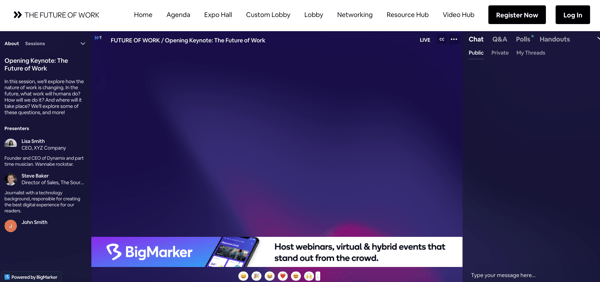
The banner will display in the webinar room as depicted in the image below:
Sponsor Banners in the classic admin
On your event’s webinar dashboard, scroll down to the Sponsor Banners section
