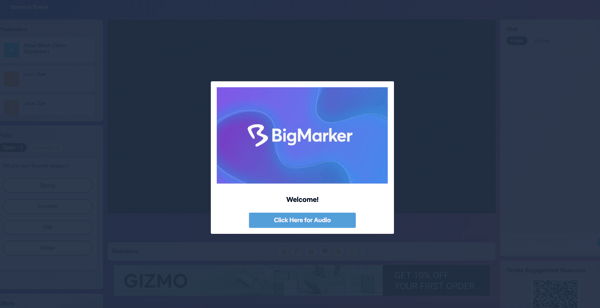
Upon entering a BigMarker webinar, attendees will see a prompt in the center of the stream to unmute the audio. This step is required for all virtual sessions on BigMarker to ensure that browsers do not block the content.
Live Events and Enterprise hosts can now edit and customize this messaging. Find this feature in the in the Sponsor Banners section of the session admin.
How to Customize the "Click for Audio" Message:
Once you are in the Sponsor Banner section of the admin, click the plus button within the Pop-up Banner category. For this type you can add an image, title, button text and button background color.

Once added, your attendees will see this popup when they first enter the room. Clicking on the button will enable the audio in the browser tab for the webinar. Below is an example of a customized “click for audio” button in a session.