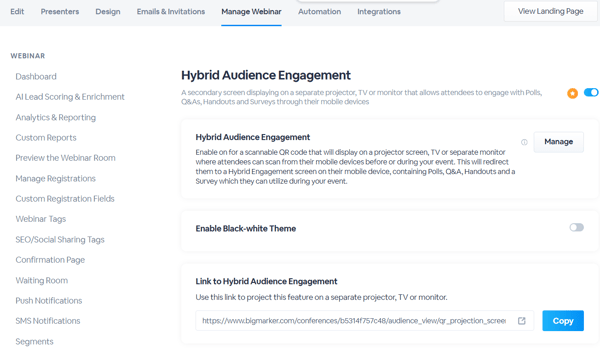
Note: This feature is only available for channels with an enterprise license. If interested, please contact sales@bigmarker.com or your customer success manager
Still using the classic admin? Click here to learn more about
Hybrid Audience Engagement is an interactive accompaniment to your event that in-person attendees can experience. Attendees will scan a QR code at the beginning of your event on their mobile device to bring up the page, allowing them to engage throughout your event using polls, Q&A, handouts and surveys.
Attendees can easily ask questions, answer polls from their phones, and view/download resources. Q&A can even be displayed in real-time when published on the second screen (learn more here) so attendees can see the most popular questions asked.
The hybrid audience engagement will only work for your session when the live room is open.
Once users have put in their responses using the Hybrid Audience Engagement pages, those responses will be part of your webinar reporting just as the regular virtual responses are.
How to Enable Hybrid Audience Engagement
On your session admin go to Production > Hybrid Audience Experience and enable the feature to get started.

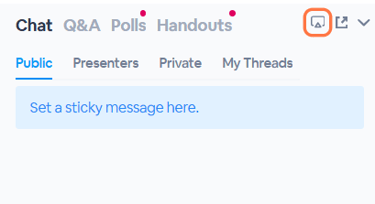
Once on, a new icon will appear in the engagement panel that presenters can use to bring up a separate browser that has your QR code to scan.
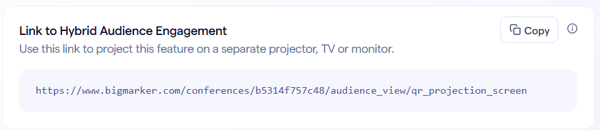
Additionally, you are able to copy and paste the link below on a separate web browser to project on an accompanying projector, TV or screen.
These links will show a QR code for your attendees to scan. Users will scan this code and then enter their information to login or register. The screen will show the title of your webinar, the webinar link and the scannable QR code.
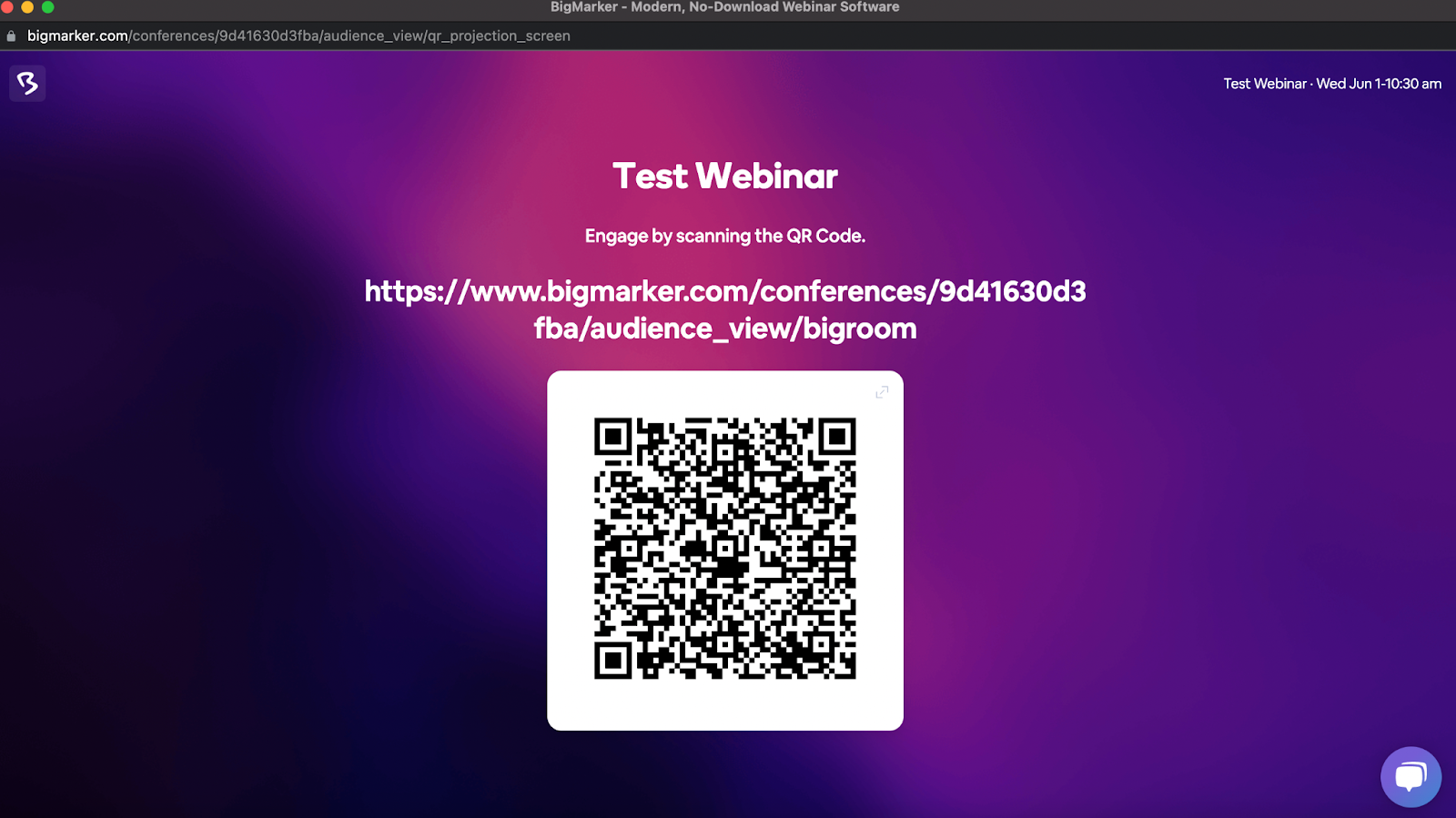
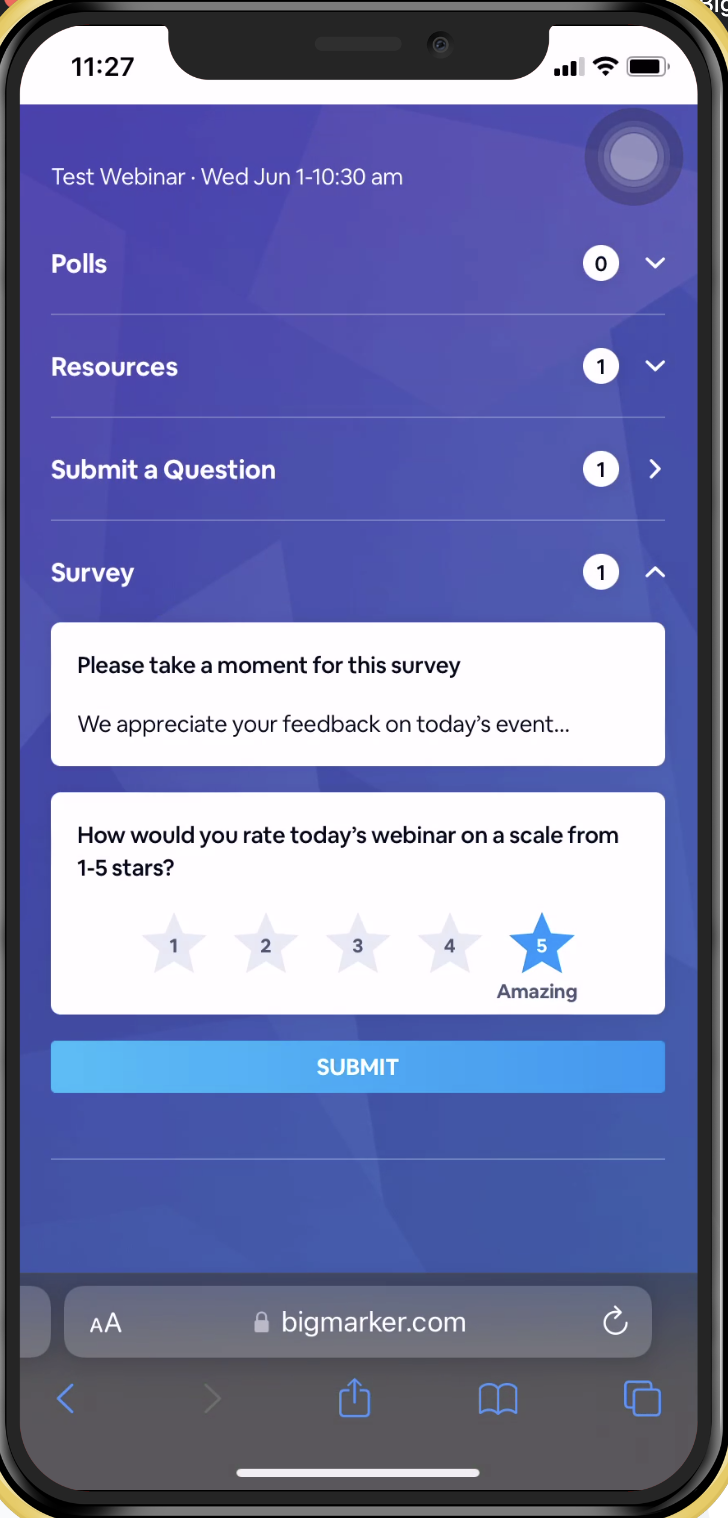
On the Hybrid Audience Engagement screen , there are a few options for attendees. They can:
- Answer Polls
- Submit questions
- Download and view handouts
- Answer a survey
As users participate you can interact with them as if they were virtual attendees. To learn more about managing these features, read more about the engagement panel
Managing settings for the Hybrid Audience Engagement
On the settings tab of the Hybrid Audience Engagement page, you'll find a number of settings available. You can:
- Show or hide specific engagement features
- Allow users to participate without registering
- Update text and dates
If you click on Edit Hybrid Audience Engagement you'll be taken to a page where you can change the logo image and background colors or image.
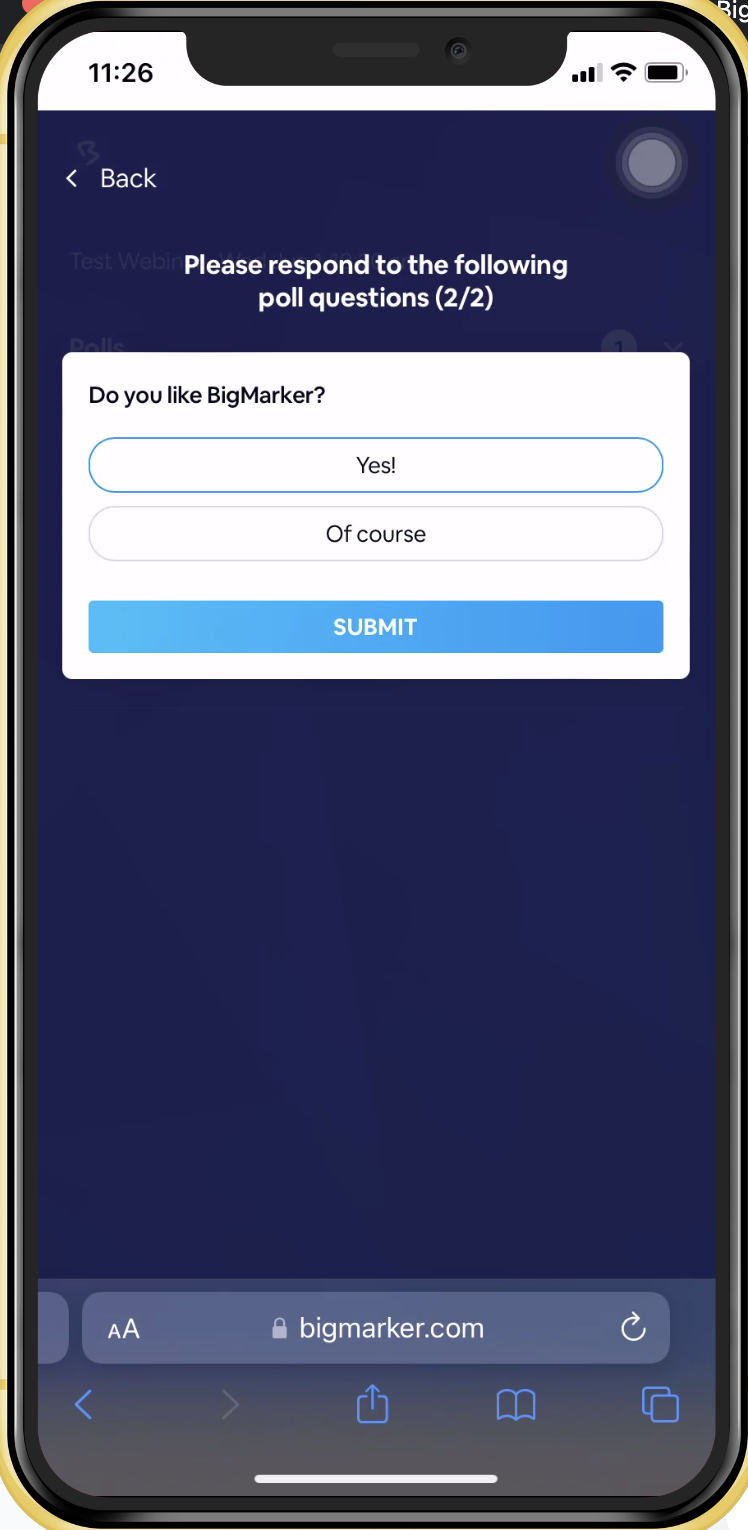
Answering Polls
Attendees will have the ability to answer polls throughout the event. When published, polls will pop up automatically on the second screen for attendees to answer. Attendees can answer immediately or click < Back to go back to the main screen and answer later. Polls that still need answers will be available on the main screen.
Submitting Questions
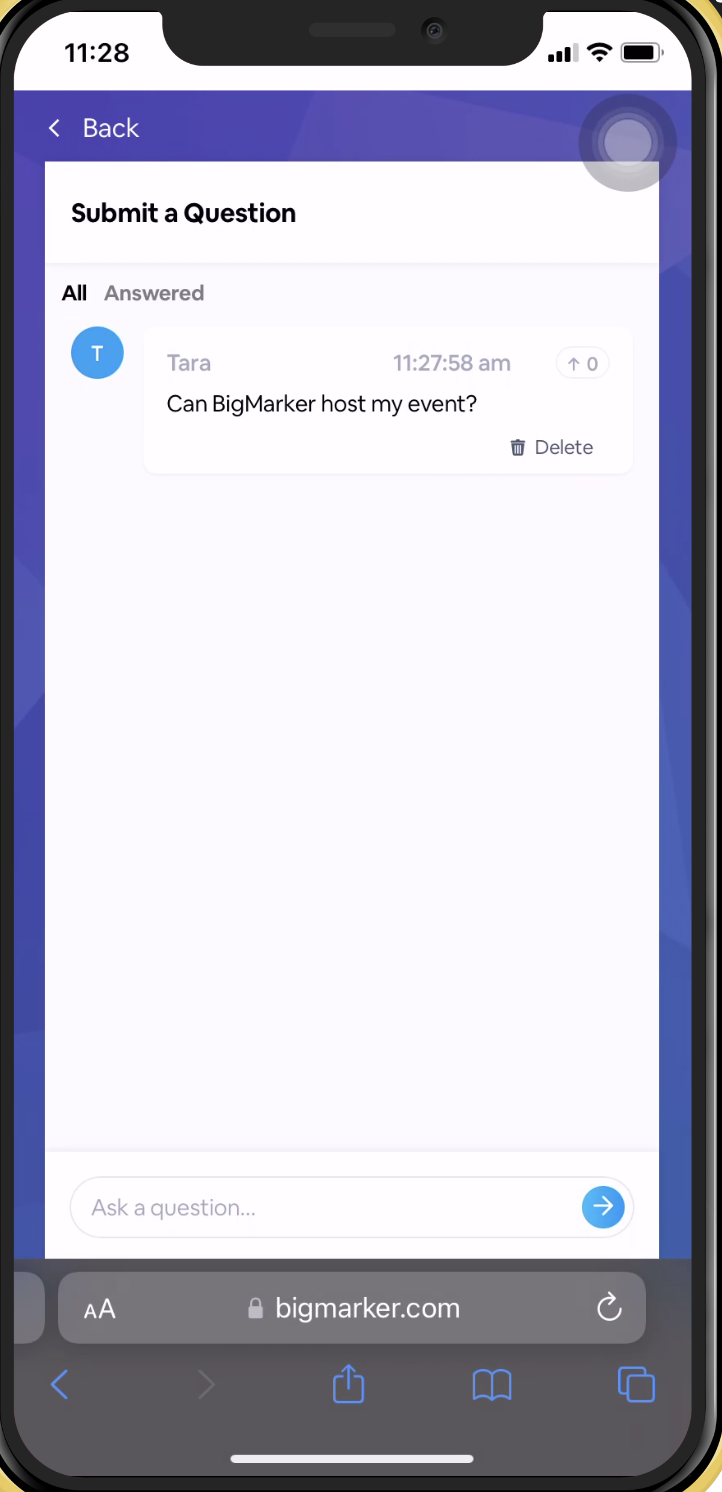
Attendees can submit questions during your event as well. They can ask questions that, when published, will appear for attendees both on the virtual webinar and our new Live On-screen Q&A (learn more here). Attendees can upvote questions to show the popularity and answer those first
Download and View Handouts
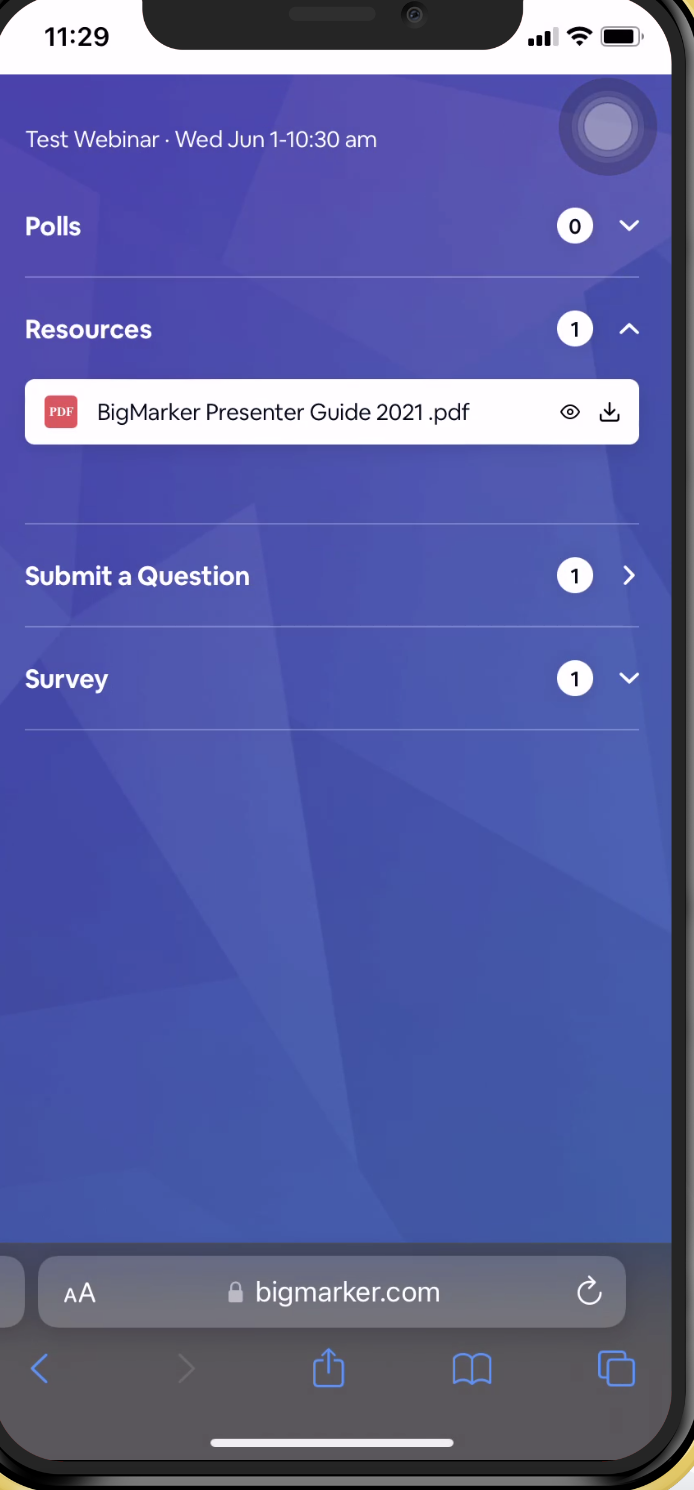
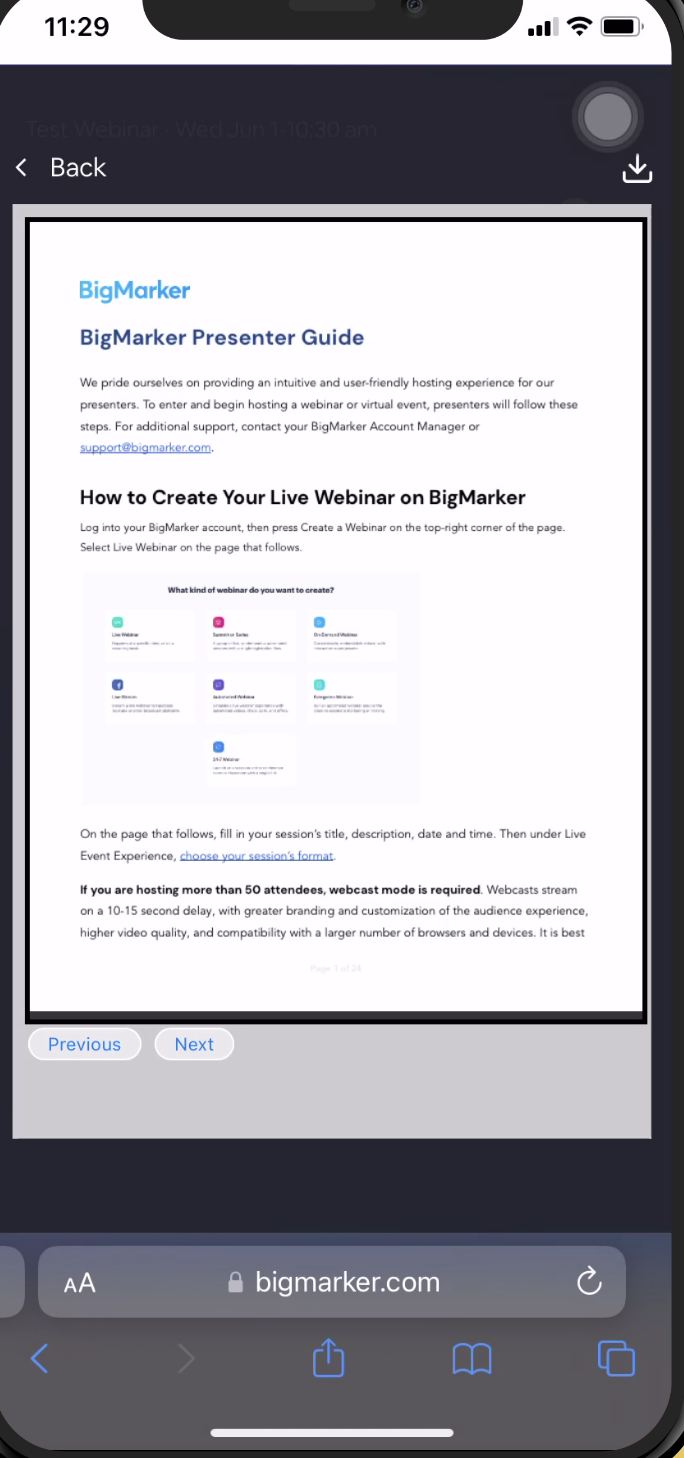
Attendees can view any handouts throughout your event and download them straight to their mobile device. Under the Resources section, attendees can see available handouts and preview them or download them from there.
Note: When downloading handouts, attendees WILL BE redirected to a separate tab with the handout to download. They will need to manually go back to the second screen to continue to engage with your event.
Answering a Survey
At the end of your event, or during, attendees can answer a quick survey using an NPS score to rate their experience.
Watch the video below to see this in live action:
Hybrid Audience Engagement in classic admin
Look for Hybrid Audience Engagement in the left hand side of the manage dashboard.