
We work hard to keep your BigMarker experience streamlined and issue-free. If you run into a problem that our support team needs to investigate, your browser’s developer console can provide the details needed to diagnose and resolve it more quickly.
When sending this information to our support team, use the steps below to open the Console tab. Please include a screenshot of the full browser window with the visible console log. If possible, save the console log as a file and attach it to your support ticket using the steps included at the end of each section below.
Keyboard shortcuts
Windows
- Chrome:
F12or More Tools > Developer Tools - Edge:
Ctrl+Shift+Ior More Tools > Developer Tools - Firefox:
Ctrl+Shift+Jor More Tools > Browser Console
Mac
- Safari:
Option+Cmd+Cor Develop > Show JavaScript Console - Chrome:
F12(fn+F12on laptops) or More Tools > Developer Tools - Firefox:
Cmd+Shift+Jor More Tools > Browser Console
Chrome
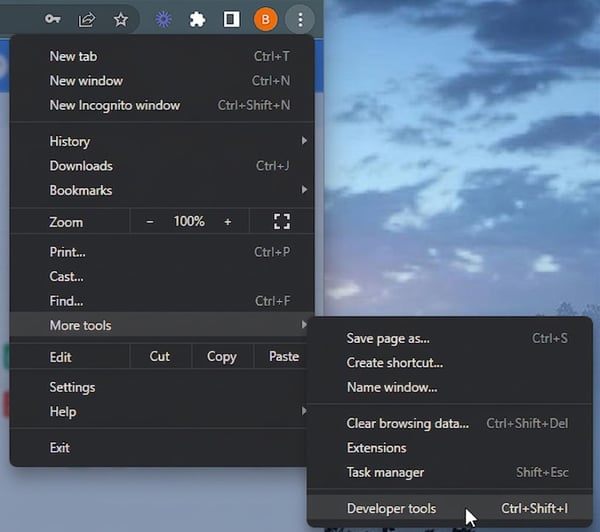
To open your console on Chrome, you can use either F12 or find it in the top-right 3-dot menu in your Chrome browser. Click that menu and go to More Tools > Developer Tools.
Next, click on the Console Tab.
Saving Console Output
To save what you see in the Console tab in Chrome, do the following:
- Windows: Right-click in the console and select "Save as..."
- Mac: control+click in the console and select "Save as..."
Safari
Safari disables the Error Console by default, so you’ll need to complete the steps below before you can open it.
Go into Safari's preferences (Safari Menu > Preferences) and then to the Advanced Tab. From there look for and check the box labeled "Show Develop menu in menu bar".
Once you've enabled that, you can then access the console by using the shortcut Option+Cmd+C or by clicking Develop > Show JavaScript Console
Saving Console Output
To save the contents of the Console tab in Safari, click anywhere in the console output, then press command+S.
Edge
To open your console on Edge, you can use either Ctrl+Shift+I or access it via the 3 dot action button in the top-right corner and go to More Tools > Developer Tools.
Saving Console Output
To save the contents of the Console tab in Edge, right-click in the console window and select "Save as..."
Firefox
To open the console on Firefox, you can use either Ctrl+Shift+J (Cmd+Shift+J on Mac) or click on the 3 line action button in the top-right corner and go to More Tools > Browser Console.
Saving Console Output
To save the contents of the Console tab in Firefox, do the following:
- Right-click on any console message shown
- Click the “Save all messages to file” option