---
title: How to Stream to Facebook, Youtube or LinkedIn from BigMarker
description: Stream your BigMarker webinars to Facebook or YouTube. This allows you to share your webinar content directly with your social media audience, no middle man or extra registration links required.
---
[Skip to content](https://kb.bigmarker.com/knowledge/how-to-host-facebook-or-youtube-live-streams-on-bigmarker#main-content)
English
Show submenu for translations
[](https://www.bigmarker.com/)
Open main navigation
Close main navigation
- English
Show submenu for translations
Welcome to the BigMarker Knowledge Base!
- There are no suggestions because the search field is empty.
1. [Knowledge Base](https://kb.bigmarker.com/knowledge?hsLang=en)
2. [Webinars and Series](https://kb.bigmarker.com/knowledge/webinars-and-series?hsLang=en)
3. [Creation & Setup](https://kb.bigmarker.com/knowledge/webinars-and-series?hsLang=en#creation-setup)
# How to Stream to Facebook, Youtube or LinkedIn from BigMarker
## Stream your BigMarker webinars to Facebook or YouTube to better reach your social media audience.
While BigMarker has everything you need to conduct your webinar, you may want to reach your wider audience that already exists. With just some additional configuration, it's simple to use the whole suite of tools in the [BigMarker Studio](https://kb.bigmarker.com/knowledge/studio-produce-live-video-content-1?hsLang=en) and outbound stream into those services.
**Note:** The audience on outside platforms will always see the **webcast audience stream** even if your webinar is in Interactive mode. These platforms will only receive the **stream**, they will not see any designs or features within the typical BigMarker audience experience such as chat or other engagement features..
### Table of Contents
1\. [Create a Webinar on BigMarker](https://kb.bigmarker.com/knowledge/how-to-host-facebook-or-youtube-live-streams-on-bigmarker#create-a-live-stream-on-bigmarker)
2\. [Where to find the outbound stream settings](https://kb.bigmarker.com/knowledge/how-to-host-facebook-or-youtube-live-streams-on-bigmarker#how-to-begin-a-live-stream)
3\.[How to Stream to Facebook Live](https://kb.bigmarker.com/knowledge/how-to-host-facebook-or-youtube-live-streams-on-bigmarker#how-to-stream-to-facebook-live)
4\. [How to Stream to YouTube Live](https://kb.bigmarker.com/knowledge/how-to-host-facebook-or-youtube-live-streams-on-bigmarker#how-to-stream-to-youtube-live)
5\. [How to stream to LinkedIn Live](https://kb.bigmarker.com/knowledge/how-to-host-facebook-or-youtube-live-streams-on-bigmarker#linkedin)
6\. [Troubleshooting](https://kb.bigmarker.com/knowledge/how-to-host-facebook-or-youtube-live-streams-on-bigmarker#Troubleshoot)
### **Create a Webinar on BigMarker**
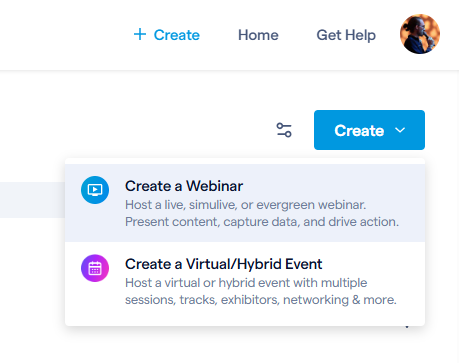
Simply create a webinar by logging in to your BigMarker account and clicking on **Create**. You can also go to any existing webinar and update these settings.
### **Where to find the outbound stream settings**
Now lets learn where you'll be configuring the outbound stream settings. These will be found inside of the BigMarker Studio, and you can configure them either as part of the actual live webinar, or within the preview room.
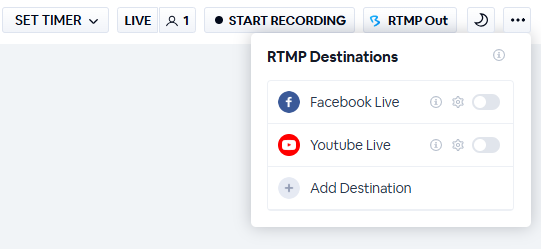
Once you've entered the studio, click **RTMP Out** in the upper right corner of your screen. You'll see existing options for Facebook and Youtube, as well as the [ability to add a destination](https://kb.bigmarker.com/knowledge/how-to-add-rtmp-stream-to-your-events?hsLang=en#how-to-stream-out-to-various-destinations). From here you will click on the gear icon next to each to add the relevant information that we'll get from your streaming service later.
### **How to Stream to Facebook Live**
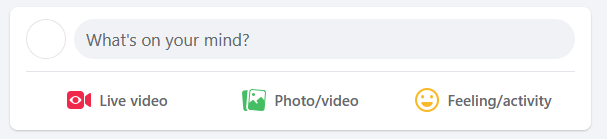
Log into the your Facebook account that will host your stream, then on your homepage, click **Live Video**.
Select **Create a live video event** where people can respond to your event. In the left hand tool bar, you can choose where to post your live stream.
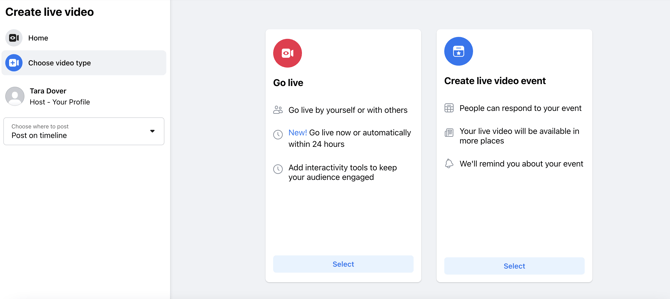
Once you have selected **Create a live video event**, you will need to input the customizable options for your event. When finished, click **Create Event**. Facebook will let you know that your event was successfully created, where then you can **setup your live video**.
 
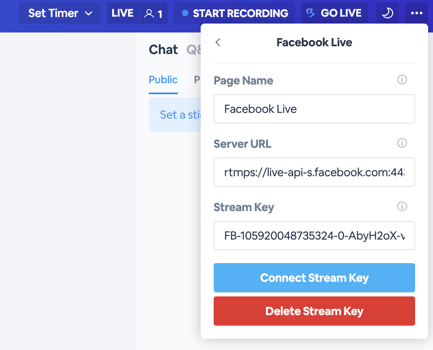
From there, you will be redirected to where you can setup your streaming software service. Under **select a video source**, click **streaming software**. From there, you will have access to the **Stream Key** and under **Advanced Settings**, the **Server URL**. Copy and paste those from Facebook into the BigMarker **Go Live** section. Click **Connect Stream Key** when finished. Click **Delete Stream Key** to delete the live stream.
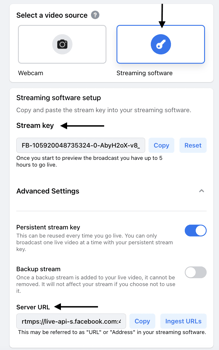. 
When that stream key is connected, you will be redirected back to main Go Live page, where you can enable ON Facebook Live. **Toggle Facebook Live to ON** and start your Facebook Live stream.
Watch the video below to see this in live action:
To end the Facebook Live Stream, click back to the **Go Live** section and **toggle Facebook Live to OFF**.
### **How to Stream to YouTube Live**
On YouTube, click the **camera icon** in the top right hand corner and then click **go live**. From there, select when you would like your live stream to begin, either **right now** or **at a later date**. Following that selection, you will be asked which video source you would like to use. Select **Go** for **Streaming Software**.
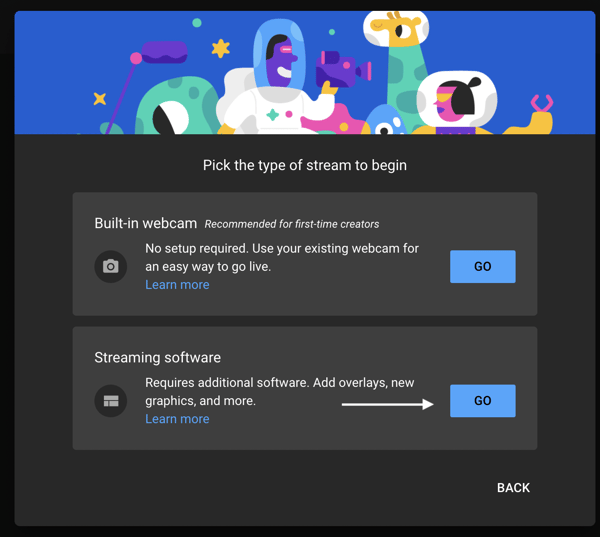
Your YouTube Live URL and YouTube Live Key are located in the lower left-hand corner of your YouTube Live Studio Dashboard. Click the copy button next to **Stream Key** and **Stream URL**, then paste them into their respective boxes in the **Go Live** section within the webinar room. Click **Connect Stream Key** when finished.
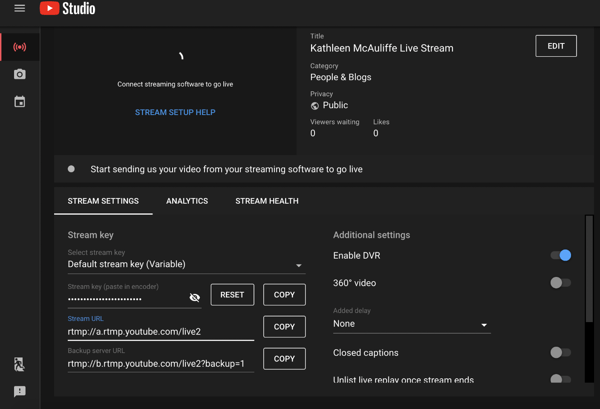
**Note:** You will need to hit the eye icon to show the Stream Key before copying it into BigMarker
When that stream key is connected, you will be redirected back to main Go Live section, where you can enable ON YouTube Live. **Toggle YouTube Live to ON** and start your YouTube Live stream.
Watch the video below to see this in live action:
To end the YouTube Live Stream, click back to the **Go Live** section and **toggle YouTube Live to OFF**.
How to stream to LinkedIn
After logging in to your LinkedIn account, you'll need to [create a new event](https://www.linkedin.com/help/linkedin/answer/a554183) and be sure to choose LinkedIn Live as the event format.
In the settings for the event, you'll be able to get the [stream key and URL](https://www.linkedin.com/help/linkedin/answer/a564446) one hour before your scheduled start time. Place this information in the BigMarker session begin streaming from BigMarker, and click go live in your LinkedIn Live studio to broadcast to your LinkedIn audience.
### Troubleshooting
If you're experiencing issues with streaming to Facebook Live or YouTube from BigMarker, a few quick troubleshooting steps can help resolve the problem. Ensuring no lingering popups, refreshing your login, and restarting the livestream process can often fix the issue. Follow the steps below to get your livestream back on track.
1. Close any Facebook Live popups that may be left open, including any in the BigMarker webinar room.
2. In a separate tab with Facebook open, log out of Facebook.
3. Try re-initiating the Livestream by the "Go Live" settings in the top-right corner of the BigMarker webinar room, then turning off the stream to Facebook or YouTube, and turning it back on.
If the problem persists, please contact **[support@bigmarker.com](mailto:support@bigmarker.com)**[mailto:support@bigmarker.com](mailto:support@bigmarker.com)for further help.
**Note**: Facebook Live streams require around 20 seconds to fully load. You may see a spinning circle in the Facebook Live popup a few times before the stream loads.
- [Getting Started](https://kb.bigmarker.com/knowledge/getting-started?hsLang=en#main-content)
- [BigMarker Basics](https://kb.bigmarker.com/knowledge/getting-started?hsLang=en#bigmarker-basics)
- [Intro to presenting](https://kb.bigmarker.com/knowledge/getting-started?hsLang=en#intro-to-presenting)
- [Basics of the attendee experience](https://kb.bigmarker.com/knowledge/getting-started?hsLang=en#basics-of-the-attendee-experience)
- [BigMarker Troubleshooting](https://kb.bigmarker.com/knowledge/getting-started?hsLang=en#bigmarker-troubleshooting)
- [Hardware and Device Troubleshooting](https://kb.bigmarker.com/knowledge/getting-started?hsLang=en#hardware-and-device-troubleshooting)
- [Network and internet troubleshooting](https://kb.bigmarker.com/knowledge/getting-started?hsLang=en#network-and-internet-troubleshooting)
- [Home, Channel & Profile Settings](https://kb.bigmarker.com/knowledge/getting-started?hsLang=en#home-channel-profile-settings)
- [Webinars and Series](https://kb.bigmarker.com/knowledge/webinars-and-series?hsLang=en#main-content)
- [Creation & Setup](https://kb.bigmarker.com/knowledge/webinars-and-series?hsLang=en#creation-setup)
- [Advanced Settings](https://kb.bigmarker.com/knowledge/webinars-and-series?hsLang=en#advanced-settings)
- [Surveys, Stats & Certificates](https://kb.bigmarker.com/knowledge/webinars-and-series?hsLang=en#surveys-stats-certificates)
- [On-demand Webinars & Video](https://kb.bigmarker.com/knowledge/webinars-and-series?hsLang=en#on-demand-webinars-video)
- [Registration](https://kb.bigmarker.com/knowledge/webinars-and-series?hsLang=en#registration)
- [Emails & Invitations](https://kb.bigmarker.com/knowledge/webinars-and-series?hsLang=en#emails-invitations)
- [Attendee Experience](https://kb.bigmarker.com/knowledge/webinars-and-series?hsLang=en#attendee-experience)
- [Design](https://kb.bigmarker.com/knowledge/webinars-and-series?hsLang=en#design)
- [Promotion & Sharing](https://kb.bigmarker.com/knowledge/webinars-and-series?hsLang=en#promotion-sharing)
- [Virtual & Hybrid Events](https://kb.bigmarker.com/knowledge/virtual-hybrid-events?hsLang=en#main-content)
- [Event Setup](https://kb.bigmarker.com/knowledge/virtual-hybrid-events?hsLang=en#event-setup)
- [Virtual Venue](https://kb.bigmarker.com/knowledge/virtual-hybrid-events?hsLang=en#virtual-venue)
- [Registration](https://kb.bigmarker.com/knowledge/virtual-hybrid-events?hsLang=en#registration)
- [Analytics/Integrations](https://kb.bigmarker.com/knowledge/virtual-hybrid-events?hsLang=en#analytics-integrations)
- [Sessions and user journeys](https://kb.bigmarker.com/knowledge/virtual-hybrid-events?hsLang=en#sessions-and-user-journeys)
- [Design](https://kb.bigmarker.com/knowledge/virtual-hybrid-events?hsLang=en#design)
- [Sponsors & Networking](https://kb.bigmarker.com/knowledge/virtual-hybrid-events?hsLang=en#sponsors-networking)
- [Hybrid Settings & Streaming](https://kb.bigmarker.com/knowledge/virtual-hybrid-events?hsLang=en#hybrid-settings-streaming)
- [Presenter Capabilities](https://kb.bigmarker.com/knowledge/presenter-capabilities?hsLang=en#main-content)
- [Using the Studio](https://kb.bigmarker.com/knowledge/presenter-capabilities?hsLang=en#using-the-studio)
- [Presenter Settings & Permissions](https://kb.bigmarker.com/knowledge/presenter-capabilities?hsLang=en#presenter-settings-permissions)
- [Content & Engagement](https://kb.bigmarker.com/knowledge/presenter-capabilities?hsLang=en#content-engagement)
- [Integrations](https://kb.bigmarker.com/knowledge/integrations?hsLang=en#main-content)
- [Webinar, Series and Event integrations](https://kb.bigmarker.com/knowledge/integrations?hsLang=en#webinar-series-and-event-integrations)
- [Channel Integrations](https://kb.bigmarker.com/knowledge/integrations?hsLang=en#channel-integrations)
- [In-person events & Mobile Event Apps](https://kb.bigmarker.com/knowledge/in-person-events-mobile-event-apps?hsLang=en#main-content)
- [Event Companion App](https://kb.bigmarker.com/knowledge/in-person-events-mobile-event-apps?hsLang=en#event-companion-app)
- [Scanner App, QR Codes & Badge Printing](https://kb.bigmarker.com/knowledge/in-person-events-mobile-event-apps?hsLang=en#scanner-app-qr-codes-badge-printing)
- [BigMarker AI](https://kb.bigmarker.com/knowledge/bigmarker-ai?hsLang=en)
- [Privacy, Security & Policies](https://kb.bigmarker.com/knowledge/privacy-security-policies?hsLang=en)
[](http://bigmarker.com)
© 2010 - 2026 BigMarker. All rights reserved.
Copyright © 2026, BigMarker