
Still using the classic admin? Click here to learn where you can find the setting to unregister and cancel your registrants.
You have two options when you want to remove someone's registration: canceling or deleting
- Canceling - When you cancel someone's registration their data is still saved in the registration list, but they individual will not be able to access the webinar with their personal link anymore. Additionally, user can cancel their own registration using the confirmation page
- Deleting - When you delete someone from your webinar or series, their data is totally removed from the registration information
To unregister someone from your webinar follow the below steps:
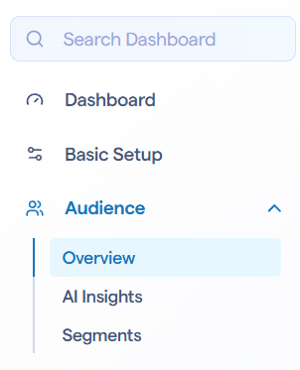
Go to your session admin and then to the Audience > Overview section. This is where you'll find your list of registrants.
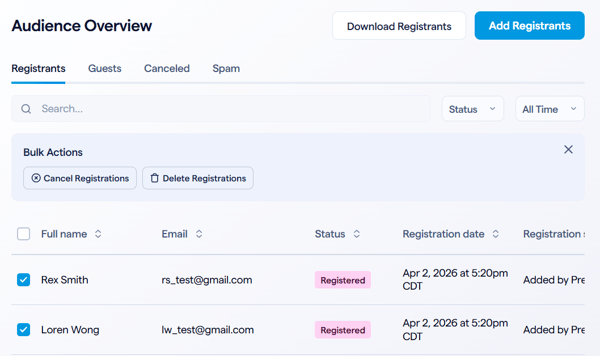
You have a few options when it comes to unregistering your audience. If you have several registrants you want to remove, start clicking on the checkboxes on the leftmost column. Once you do so, bulk actions to cancel or delete registrants will appear. Click on either and confirm to unregister the group you checked.
If you want to unregister a single person, find the contact and click on their row to pull up their information. Scroll down in the Overview tab to see the option to cancel or delete the registrant.

Unregistering using the classic admin
Look up the registrant in the Manage Registrations section of the Manage Dashboard. Click view to expand their registration information. At the bottom of their details, select Cancel or Delete Registration.
