Polls are a great way to get immediate feedback and insight from your audience, but sometimes that information can't be gathered with a single question. Instead of creating several single-question polls to display one after another, you can create a poll flow with multiple questions. Attendees will answer the questions in sequence, and you can also build in dependencies and branching paths based on their responses.
The ability to create multiple question polls is only available in the Session Admin. If using the classic admin you will have a similar but more limited option to achieve a similar experience.
For more basic information on polls read through our guide here.
When you create a poll you have the option to make it a multiple question type. When you do so, the rest of the poll settings will change and you will see the option to start adding questions.
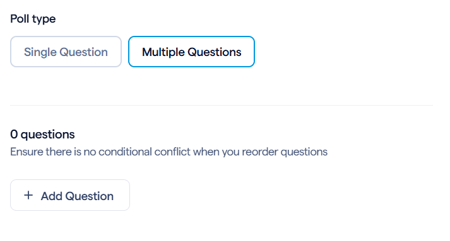
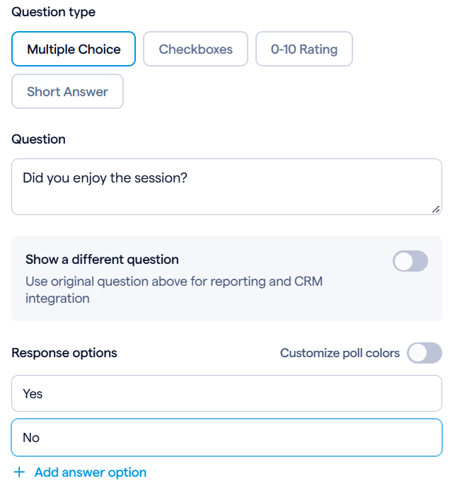
Click on add a question to get started. You'll first choose what kind of question you want to create, then any applicable response options.
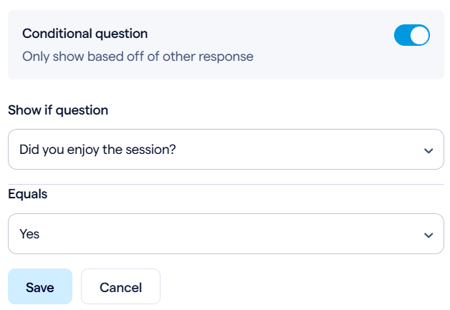
After you create your first question, any additional question will have another option to make it a conditional question. This setting makes the question appear only when a respondent selects a specific answer to a previous question.
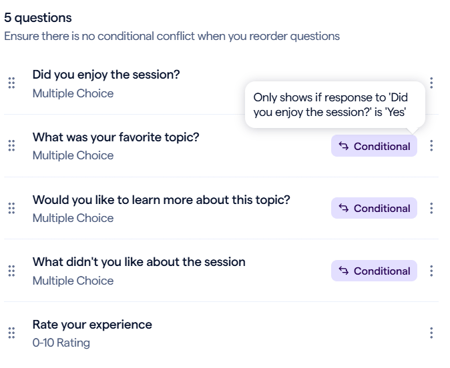
When you create your questions, they'll appear in a list that you can reorder. Your first question cannot be moved, but the rest can.
Additionally if you have any conditional questions you will see a tag for that. Hover over the tag with your mouse cursor to get a tooltip on what the condition is.
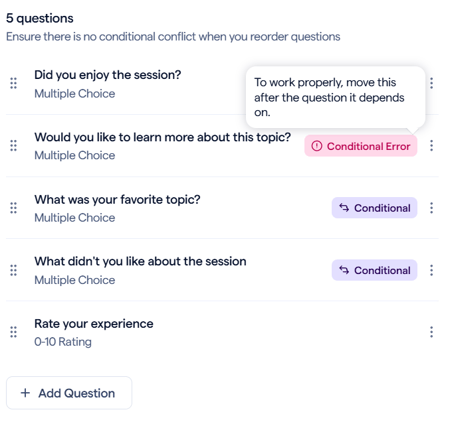
If you have conditional questions, then they must be in a specific order. If you reorder your questions incorrectly, you'll see a new tag alerting you:
Once created, you can launch your poll in the room and your attendees will see all of the questions you have configured. Each question will be shown as a different "poll" in your analytics and downloaded reports.
Multiple question polls using the classic admin
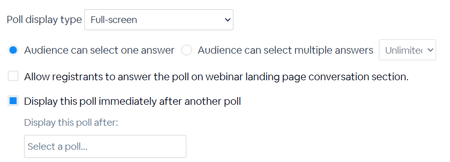
When using the classic admin, instead of the different creation flow for multiple questions, you will see one setting for all polls: Display this poll immediately after another poll. When this setting is on, you’ll see a new dropdown to select an already existing poll. Once this is set, the newly created poll will show to your attendees immediately proceeding the first poll.